How to run multiple
Claude Code accounts
side by side.
Stop logging in and out. Here's how to run your work and personal Claude Code accounts simultaneously with a single shell alias.
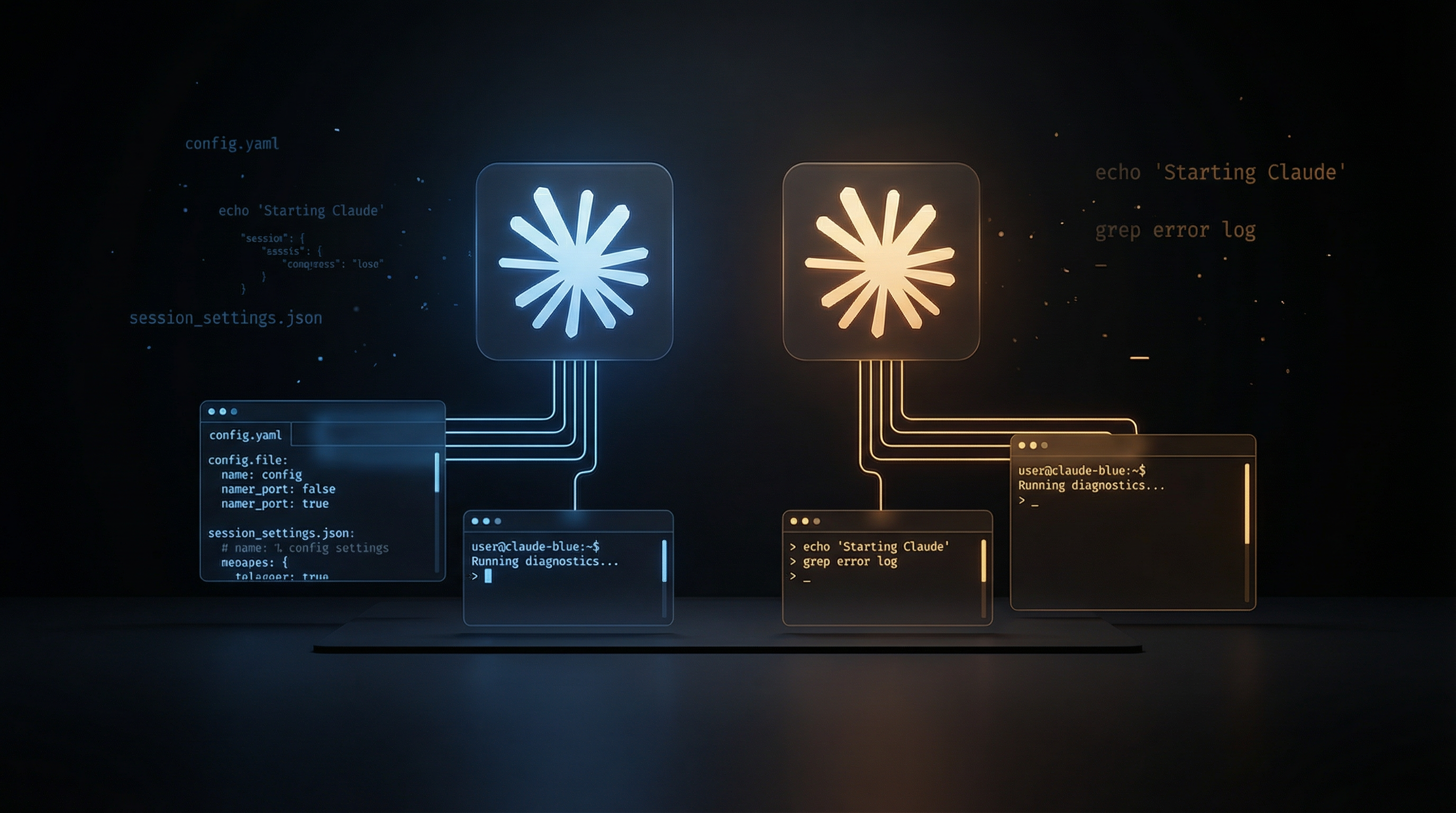
If you use Claude Code for both work and personal projects, you've probably hit this friction: you can only be logged into one account at a time. Switching means /logout, /login, re-authenticate, every single time.
There's a better way. With one line in your shell config, you can run both accounts simultaneously in separate terminal windows, each with their own sessions, memory, and settings.
Heads Up: Check Your Work Policy First
Before you set this up on a work machine, check with your employer or IT department. Many companies have policies against running personal accounts on company hardware, and for good reason. A personal Claude account on a work laptop can blur the line between personal and company data, surface credentials or MCP connections through the wrong session, and complicate compliance, auditing, and incident response. I ran into this at my own workplace, they asked me to keep my personal Claude off the work machine, and honestly that's a fair call. If you're unsure, keep your personal account on your personal hardware.
The Problem
Claude Code stores everything (credentials, session history, project memory, MCP server configs) in a single ~/.claude directory. One directory means one account.
But Claude Code supports a CLAUDE_CONFIG_DIR environment variable that lets you point to a different config directory. That's the entire trick.
The Setup (2 Minutes)
Step 1: Create a Shell Alias
Add this to your ~/.zshrc (or ~/.bashrc for bash):
# Claude Code - personal account (separate config dir)
alias claude2='CLAUDE_CONFIG_DIR=~/.claude-personal claude'
Then reload your shell:
source ~/.zshrcStep 2: Bootstrap Your Personal Config
You have two options here.
Option A: Start fresh
Just run claude2, the config directory gets created automatically on first launch:
claude2Option B: Copy your existing config
If you want your personal instance to start with all your existing sessions, settings, and project memory:
cp -R ~/.claude ~/.claude-personalThis copies everything: sessions, MCP server configs, project memory, settings. From this point on, the two directories evolve independently.
Step 3: Authenticate Your Personal Account
claude2Once inside the session, run:
/loginAuthenticate with your personal account. This overwrites the credentials in ~/.claude-personal only, your work account in ~/.claude stays untouched.
How It Works
The alias sets CLAUDE_CONFIG_DIR before launching Claude Code. This tells it to use ~/.claude-personal instead of the default ~/.claude for all config, credentials, and session data.
claude→ uses~/.claude→ Work accountclaude2→ uses~/.claude-personal→ Personal account
Each directory stores its own:
Authentication credentials, persisted in macOS Keychain, scoped to the config dir
Session history, resumable with --continue or --resume
Project memory, per-project context that carries across sessions
MCP server configs, account-level .mcp.json
Settings, settings.json and settings.local.json
Running Both Simultaneously
Open two terminal windows and run one in each:
# Terminal 1, work
claude

# Terminal 2, personal
claude2
They run completely independently. No conflicts, no shared state.
Resuming Named Sessions
You can name sessions in either account and resume them later:
# Start a named session on your personal account
claude2 -n "side-project-auth-refactor"

# Resume it later
claude2 --resume side-project-auth-refactor
Going Further: Three or More Accounts
The pattern scales. Need a client account too?
alias claude-client='CLAUDE_CONFIG_DIR=~/.claude-client claude'Each alias is a fully isolated Claude Code environment.
Tips
Auth persists across reboots. Both accounts stay logged in until you explicitly /logout.
Project-level config is separate from account config. Your CLAUDE.md files and per-project settings live in the repo, not in ~/.claude, so they're shared across both accounts automatically.
MCP servers are per-account. If you configure MCP servers in one account, you'll need to configure them in the other too (or copy the .mcp.json between config directories).
TL;DR
# Add to ~/.zshrc
alias claude2='CLAUDE_CONFIG_DIR=~/.claude-personal claude'

# Reload shell
source ~/.zshrc

# Optionally copy existing config
cp -R ~/.claude ~/.claude-personal

# Authenticate personal account
claude2
# then run /login inside the session

# Now both work independently
claude    # → work account
claude2   # → personal account
One alias. Two accounts. Zero friction.